

Guides · Your team
Inviting people
Knack charges per account, not per person — so adding your estimator, your office admin or whoever answers the phone costs nothing extra. Here's how to get them signed in with the right access.
5 steps · about a 3-minute read
-
Who's already in
Every account starts with one person — whoever signed up — as the Owner. Settings → Team is the full list: name, sign-in email, an hourly cost rate (it feeds the labour figures in your job costs and is never shown to a customer), and a role. The list can grow without the price changing.
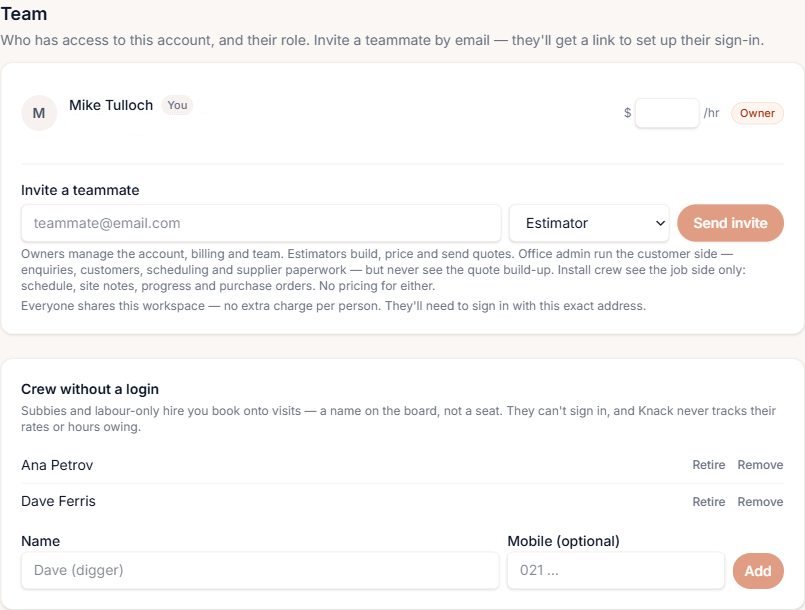
One owner, and two crew without a login already on the schedule. -
Invite by email, pick a role
Type their email, choose a role, and press Send invite. That's the whole form — nothing for them to find and sign up to on their own, and no seat to buy first.
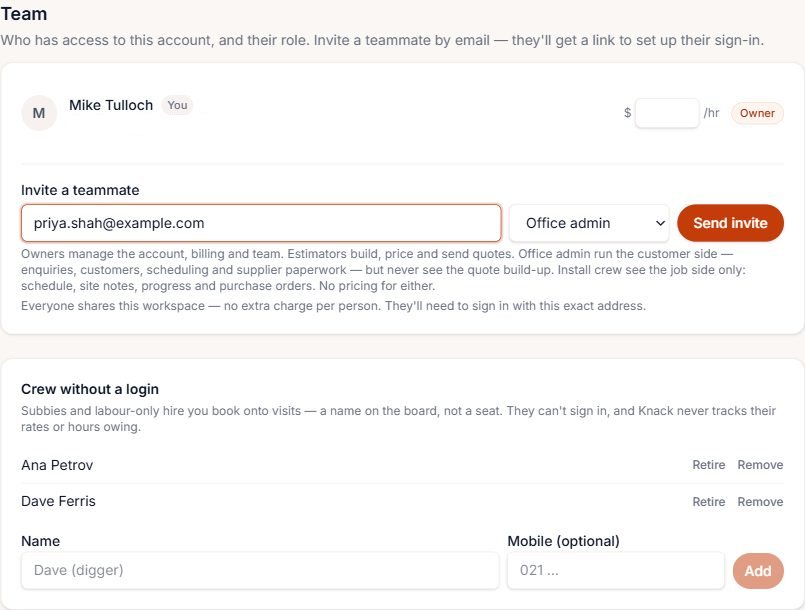
Priya, invited as Office admin — the role decides what she'll be able to open once she's in. -
Four roles, four views of the account
The role isn't a formality — it decides what they can open. Office admin and Install crew both work the job side of Knack without ever seeing a cost or a margin.
- OwnerRuns the account, billing and team. Sees everything.
- EstimatorBuilds, prices and sends quotes, with full pricing.
- Office adminRuns the customer side — enquiries, customers, scheduling, supplier paperwork. Never sees the quote build-up.
- Install crewThe job side only — schedule, site notes, progress, purchase orders. No pricing.
Scheduling — and so most of what Install crew do day to day — comes with the Pro and Crew plans.
-
They get a link, you get a pending row
Knack emails them a link to set up their own sign-in — you never pick a password for them. Until they use it, they sit under Pending invites with their role, when it was sent and when it expires. Resend sends a fresh link without retyping anything; Cancel withdraws the invite before it's used.
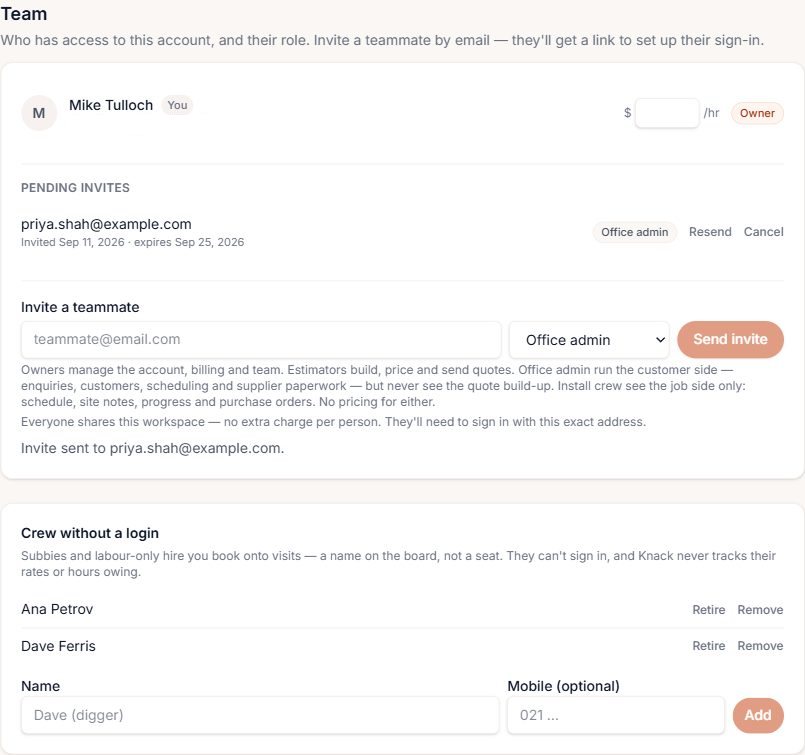
Fourteen days to accept — after that, Resend sends a fresh link rather than leaving a dead one. -
Not everyone needs to sign in
An invite is for someone who'll open Knack themselves. For a subbie or labour-only hire you just need on the schedule — a name to assign a visit to — use Crew without a login on the same page, covered in Booking the crew in. No email, no role, no cost: just a name on the board.
The two lists work together. Invite the people who need to open the app. Add everyone else as crew without a login, however many there are, whenever a job needs them.
What this doesn't do
No per-seat pricing and no separate viewer tier. One subscription, one account — and everyone on it sees Knack the way their role says they should.
Try it on a job you're pricing this week.
Thirty days, every plan feature, no credit card.