

Guides · Jobs & scheduling
Booking the crew in
A sold job isn't a booked job. Here's how Knack turns "accepted" into a day on someone's calendar — for the people who log in, and the ones who never will.
8 steps · about a 6-minute read
Booking visits and running jobs are part of the Pro and Crew plans — and of the 30-day trial, which has every plan feature.
-
Accepted work waits in the booking tray
The moment a quote is accepted, the job appears under Needs booking on the Schedule page, and it stays there until it's actually on the calendar. Accepted doesn't mean booked.
A new account starts with one person to book: whoever signed up. Everyone else — your team and your subbies — gets added as you need them, which is step 3.
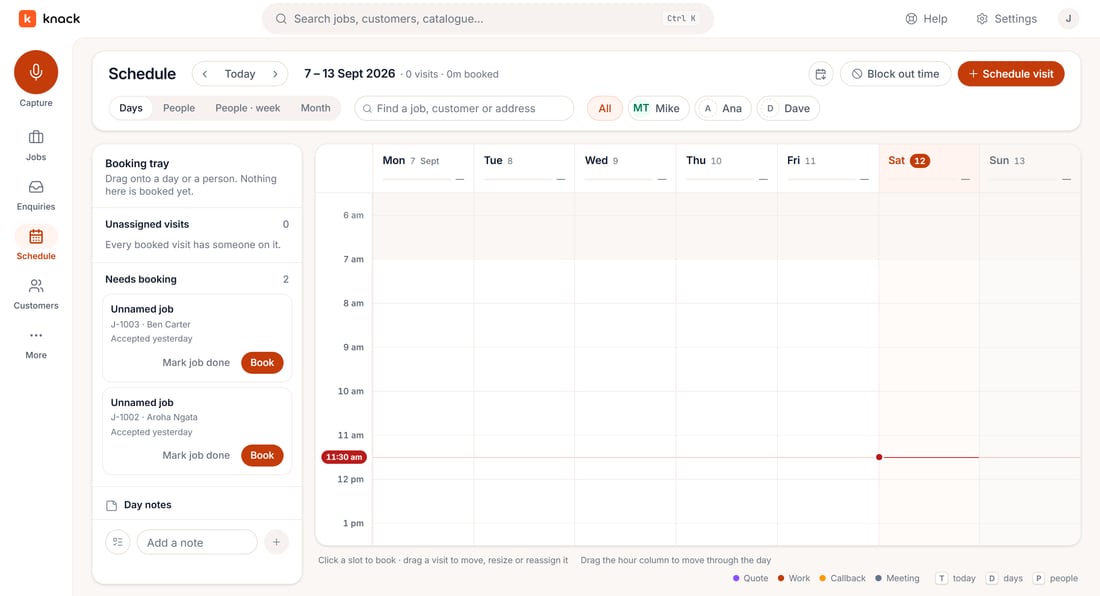
Two accepted jobs, waiting to be booked. -
Book the visit
Press Book on a job in the tray, or Schedule visit in the toolbar and pick the job. Set a date, a start time and how many hours, and Knack works out the finish time.
What kind of visit sets its colour on the board — Work, Quote / site measure, Callback or Meeting. What you're doing is a short label of your own, useful when a job needs several visits and "Tuesday, 9am" wouldn't tell them apart. Then Assign: everyone you can book is one tap, no typing.
- KindWork
- DoingSwitchboard upgrade
- Hours3
- AssignMike Tulloch
The customer only hears about it if you say so. Tick "Email the customer this booking" and Knack sends one confirmation, then a reminder the day before on its own — and a note if the visit moves. Leave it off and the booking stays between you and the crew.
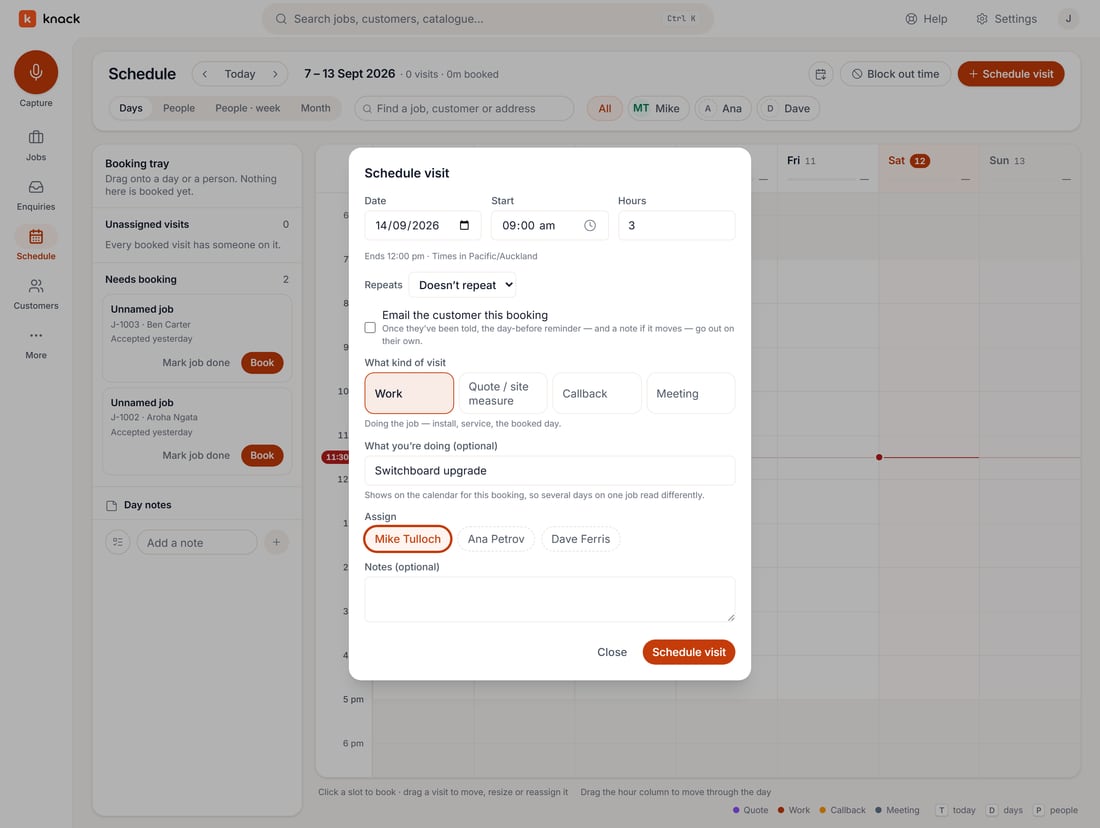
Monday 9am to 12pm, Mike Tulloch on it, and the customer email left off. -
Crew don't need a login to be on the board
Add subbies and labour-only hire under Settings → Team → Crew without a login: a name and, if you like, a mobile number. They can't sign in, Knack never tracks their rates or hours owing, and they don't cost you anything. Once they're added, they're one tap to assign, same as anyone with a login.
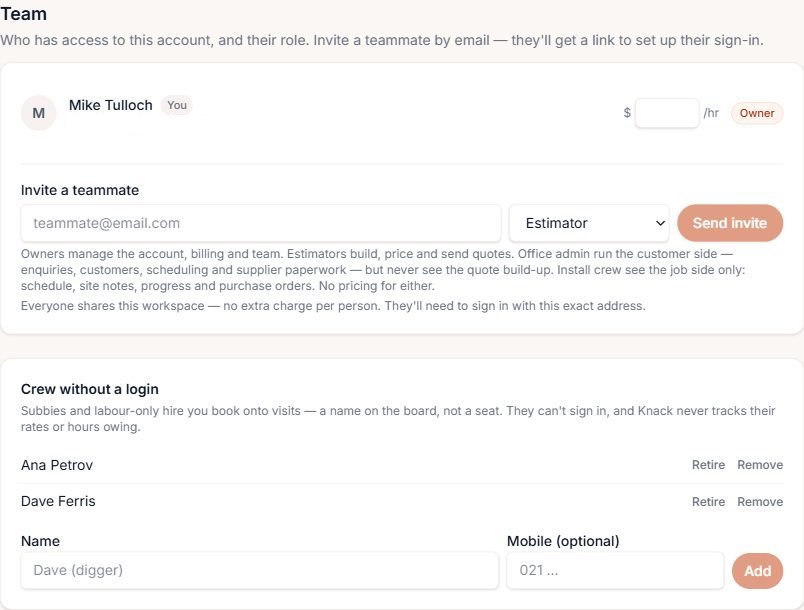
Ana Petrov and Dave Ferris — bookable onto visits, neither with a Knack sign-in. -
See the whole crew's week at once
Switch the Schedule's view to People · week and the board turns sideways: one row per person, one column per day, Monday to Sunday. It answers "what's everyone doing on Thursday?" without clicking through the week one day at a time.
Drag a visit to another day or another row to move or reassign it — you read the board and change it in the same place.
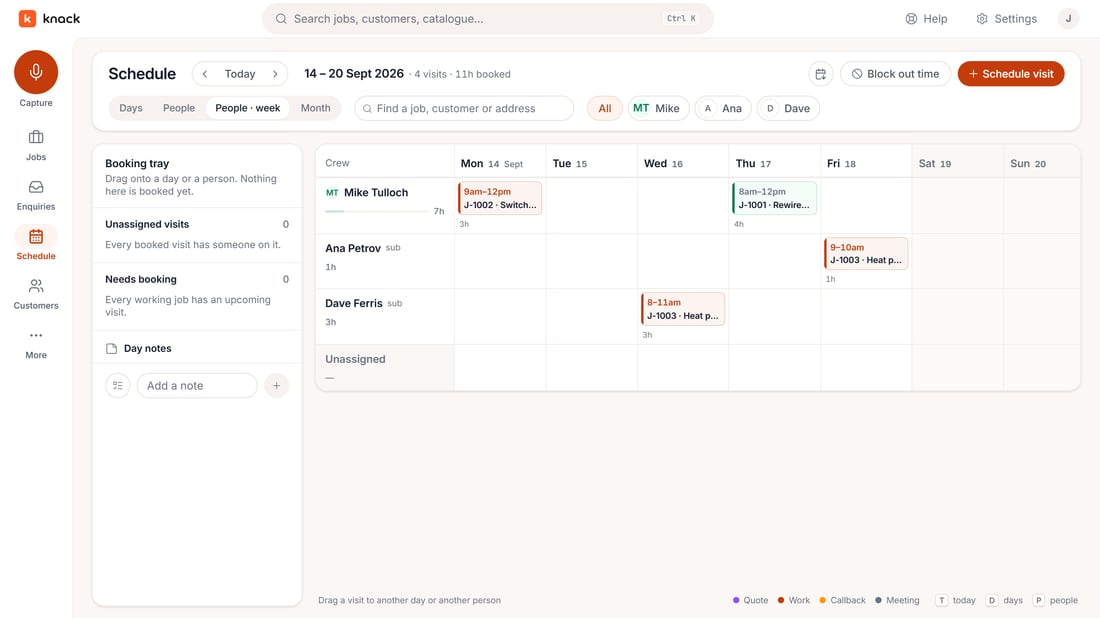
Three people, four visits, Monday to Friday — the whole crew's week at a glance. -
Or plan by the day, if that's how you think
Days, People and Month are the other views of the same booked work. Nothing belongs to one view: book a visit in Days and it's already there in People · week. The Needs booking and Unassigned visits counts in the tray stay live in all of them.
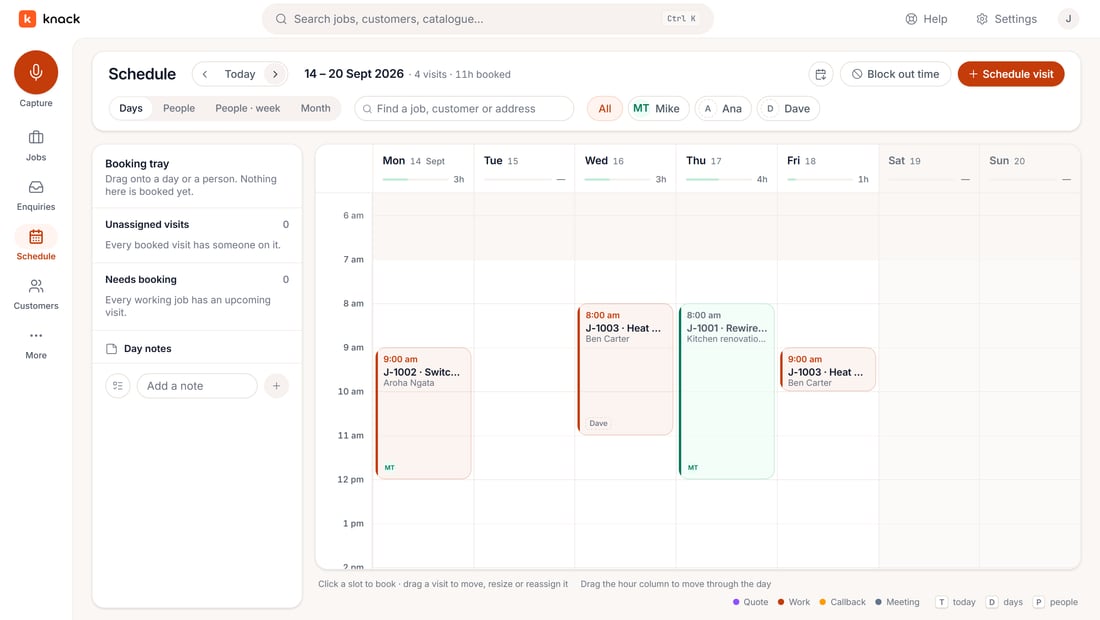
The Days view — both jobs booked, and Needs booking back to zero. -
Open a visit to see — and change — who's on it
Click any booked visit and its details open alongside the board: who's on it, whether the customer's been told, and every action for that visit — Edit visit, Book follow-up, Copy to another day, Cancel visit. Changing who is on it is a one-tap row of names right in the panel, with a tick on whoever is on.
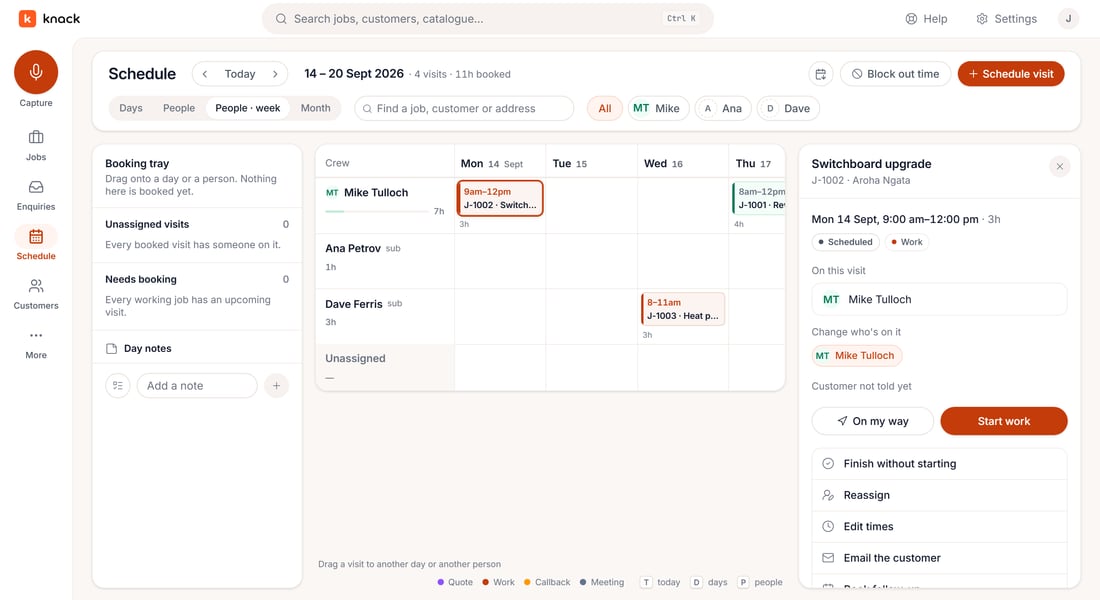
Aroha Ngata's visit — Mike Tulloch on it, the customer not told yet, every action in one place. -
Tell the customer you're on the way
From the same panel, On my way asks how far out you are — 15, 30 or 45 minutes, about an hour, or no time at all — and sends the customer one message on the spot. It's a courtesy, not a tracker: nothing keeps updating after it's sent.
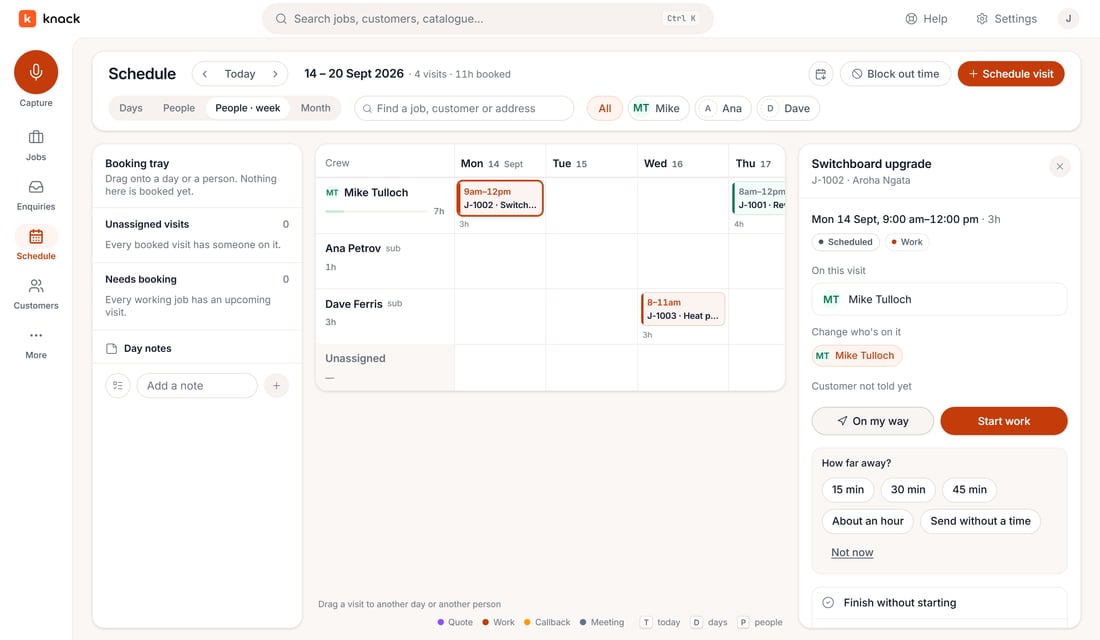
One tap, one time, one message — then back to the job. -
Keep a file off the crew's copy
Not everything filed on a job is for the person doing the work. A supplier quote, a margin working — Hide from crew on any document keeps it off the job sheet without deleting it or moving it. Show to crew puts it back.
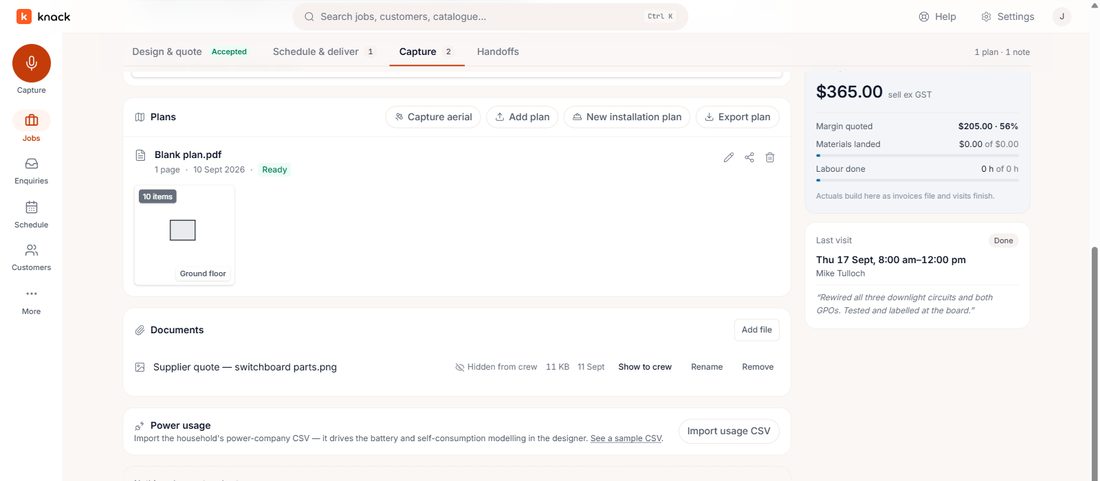
Hidden from crew — still on the job, still yours, just not on the sheet the crew reads on site.
What Knack doesn't do here
Booking a visit says who's meant to be where — it was never meant to answer how many hours they actually worked. The hours come from the visit itself, when the crew press Start and Finish or say how long they were on site at the close-out, and from the timesheet the office approves. Knack records hours; it never calculates pay.
Try it on a job you're pricing this week.
Thirty days, every plan feature, no credit card.