

Guides · Quoting
Quoting a job, start to finish
The path most jobs take through Knack — from the first call to your customer clicking accept. Every screen below is the product itself; only the customer is made up.
8 steps · about a 6-minute read
-
Start the job
Most jobs start on the Jobs page with New job. Knack asks how you want to get the details in, because a callout, a kitchen reno and a fit-out with drawings all start differently — or you can just create the job and add a quote, plan or voice notes later.
Standing on site with your phone? Capture in the left rail skips the question and goes straight to recording a voice note.
- Record a voice noteTalk through the job on site, then turn your notes into a quote when you're ready.
- Build a quoteEnter the scope and pricing yourself, using your price book and rates.
- Start from plansUpload drawings, aerials or site photos and measure the takeoff before you price.
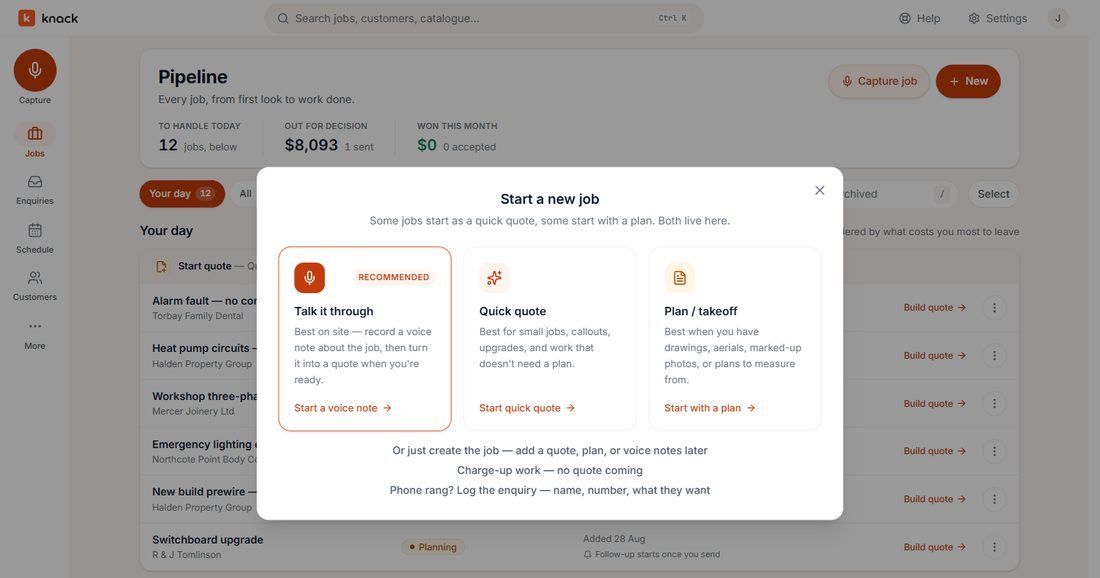
Three ways in — or create the job now and fill it in later. -
Capture what you know
Once the job exists, its Capture tab holds everything you have before you've priced anything: a voice note, a photo of the switchboard, a PDF plan, an aerial of the roof, or just a document worth keeping on file.
None of this is a quote yet — it's the raw material the next two steps turn into one.
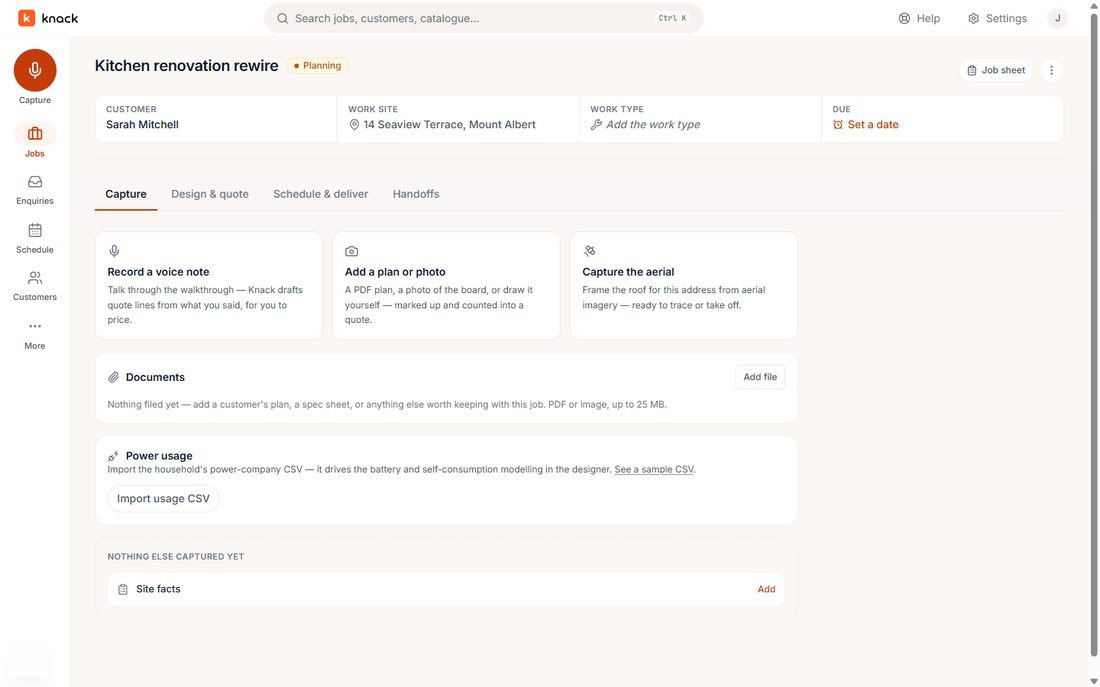
The Capture tab for a new job — nothing here is priced yet. -
Mark up the plan and count the quantities
Upload a plan, sketch one over a site photo, or start blank and draw the rooms yourself. Draw a room, name it, and drop symbols from your catalogue — downlights, power points, whatever's on the job — straight onto it. Knack counts each one as you place it.
Tip: the panels beside the plan keep a running tally — each item, its count, and whether it's linked to a quote line yet. Nothing here commits you to a price.
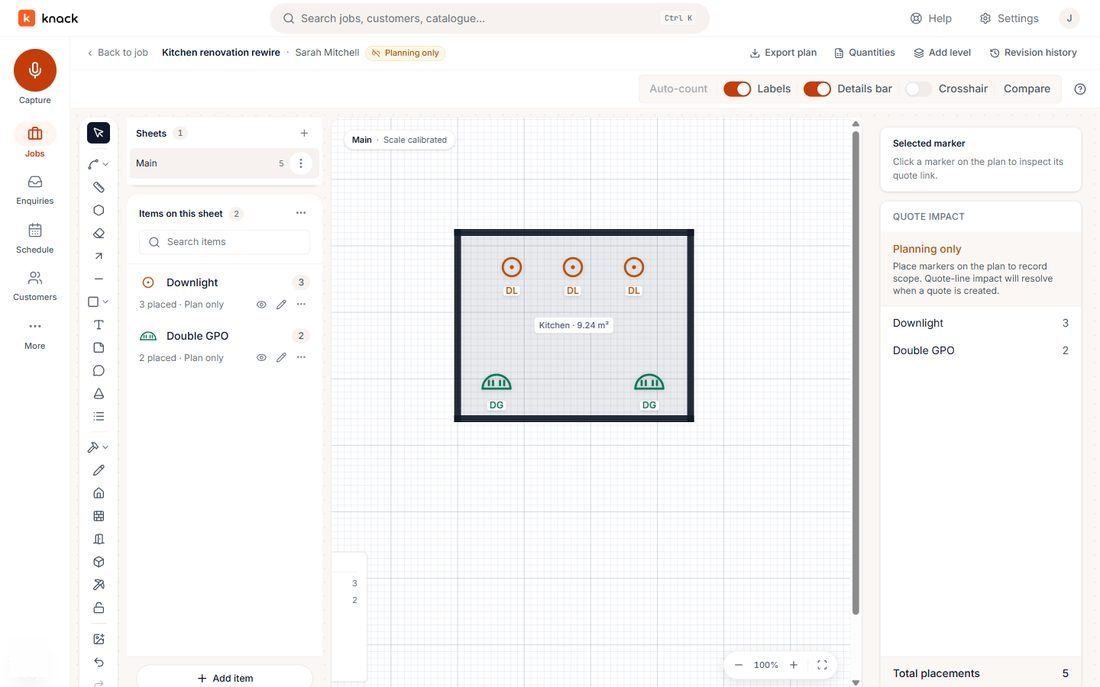
A room drawn from scratch, with three downlights and two double power points placed and counted. -
Turn the plan into a priced quote
On the job's Design & quote tab, Create quote from plan turns every symbol you placed into a quote line — quantities already counted, grouped into one section. What it can't know yet is what you charge, so each line starts out needing a product or a price.
Pick an item from your catalogue, or price the line by hand: a unit cost, a unit sell, done. The header updates as you go — what the customer pays and, next to it, for your eyes only, your margin.
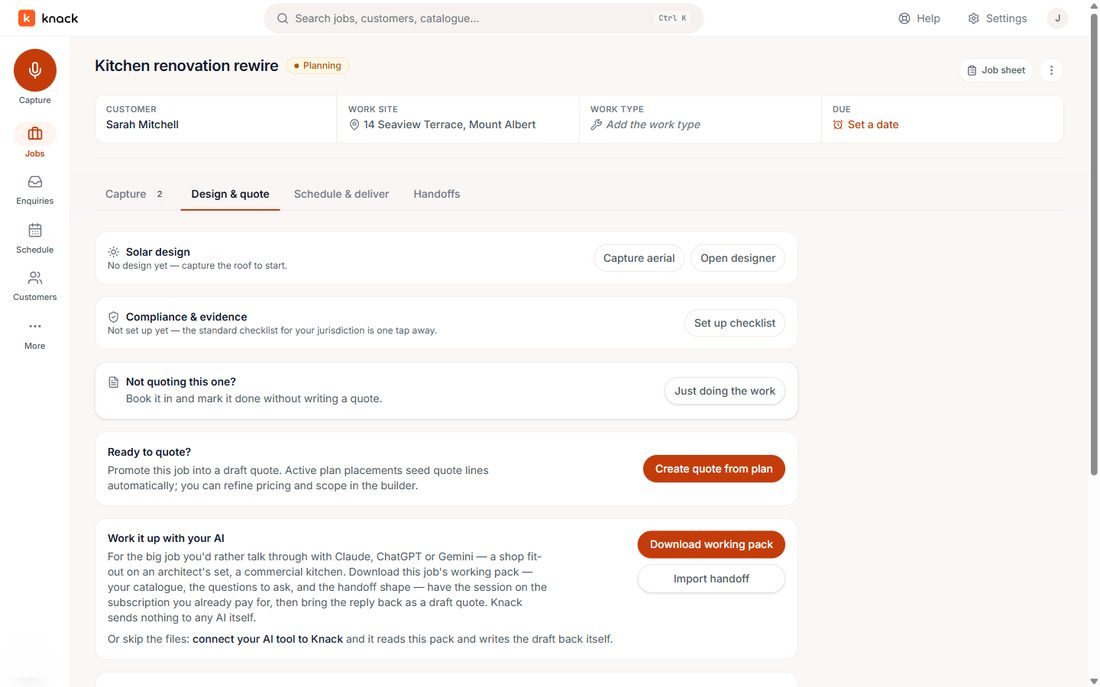
Create quote from plan — the takeoff's counts become the quote's quantities. 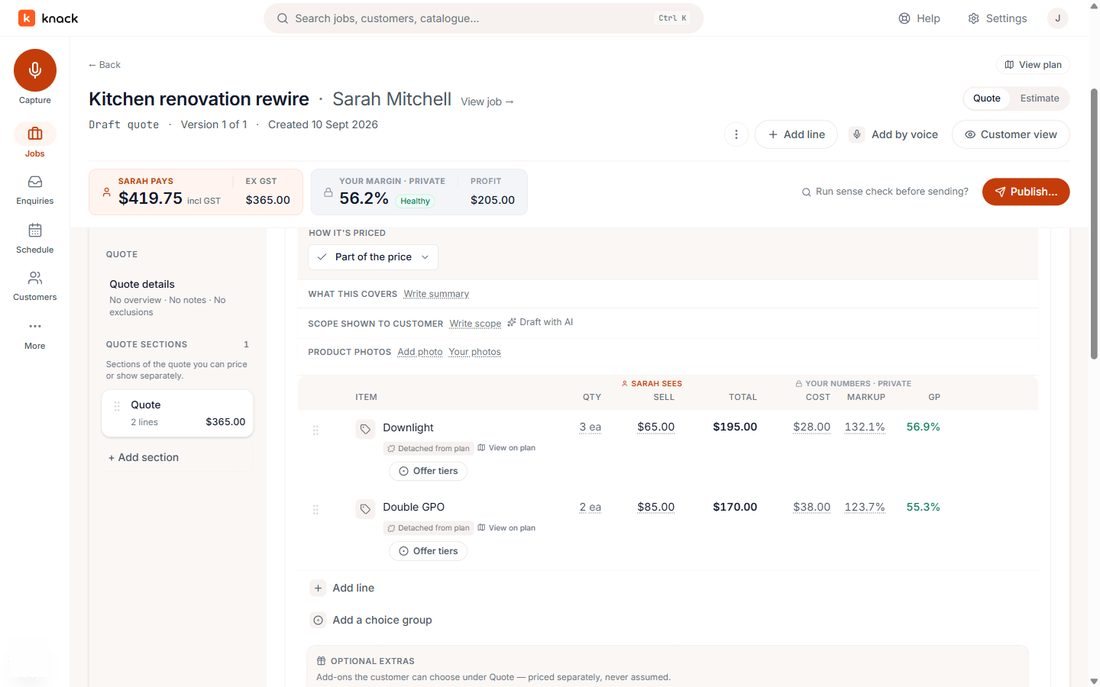
Priced: $419.75 incl. GST to the customer, a 56% margin for you. -
Preview it the way your customer will see it
Customer view shows the quote with your cost and markup columns gone and nothing else changed. It's the same preview you can show a customer at the ute before you've sent anything — and where you decide, section by section, how much detail they see: every line itemised, labour or materials only, or just a total.
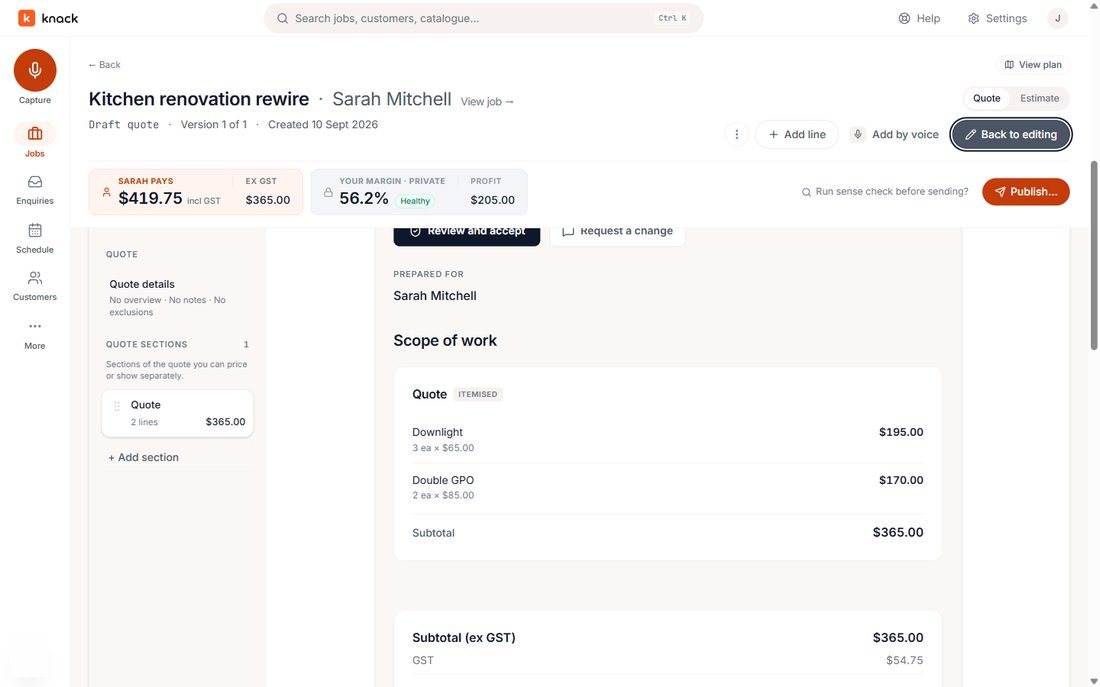
What the customer sees: the lines, a subtotal and GST. No cost, no margin. -
Send it
Publish… runs one last check before anything goes out — here, a few measured runs on the plan aren't linked to a priced line, worth a glance before sending. Then you choose how it's delivered: Knack emails the customer, or you create a link and share it your own way. If there's no email on file for the customer, the link is the way.
A link-only send gets no automatic follow-ups and no acceptance receipt back to you, so plan to check in yourself.
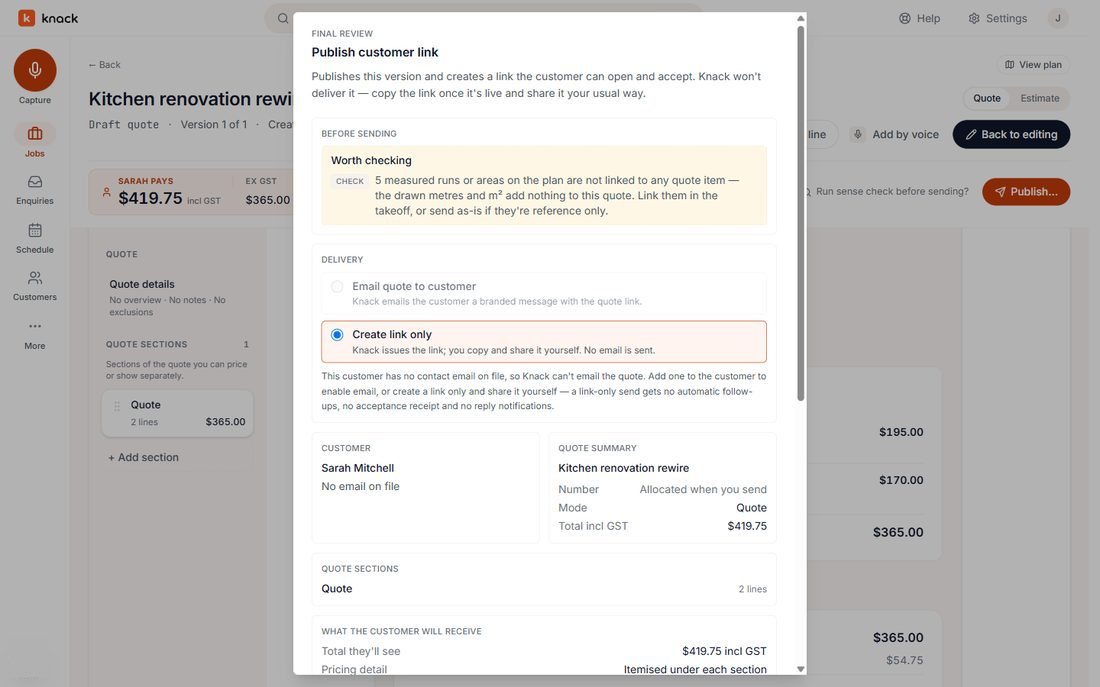
One last review before anything goes out. -
What your customer sees and does
They open a plain page carrying your trading name, the scope and the total — nothing about how you got there. Two buttons: Review and accept, or Request a change. Accepting asks for their name and email and one declaration to tick, and that's the signature.
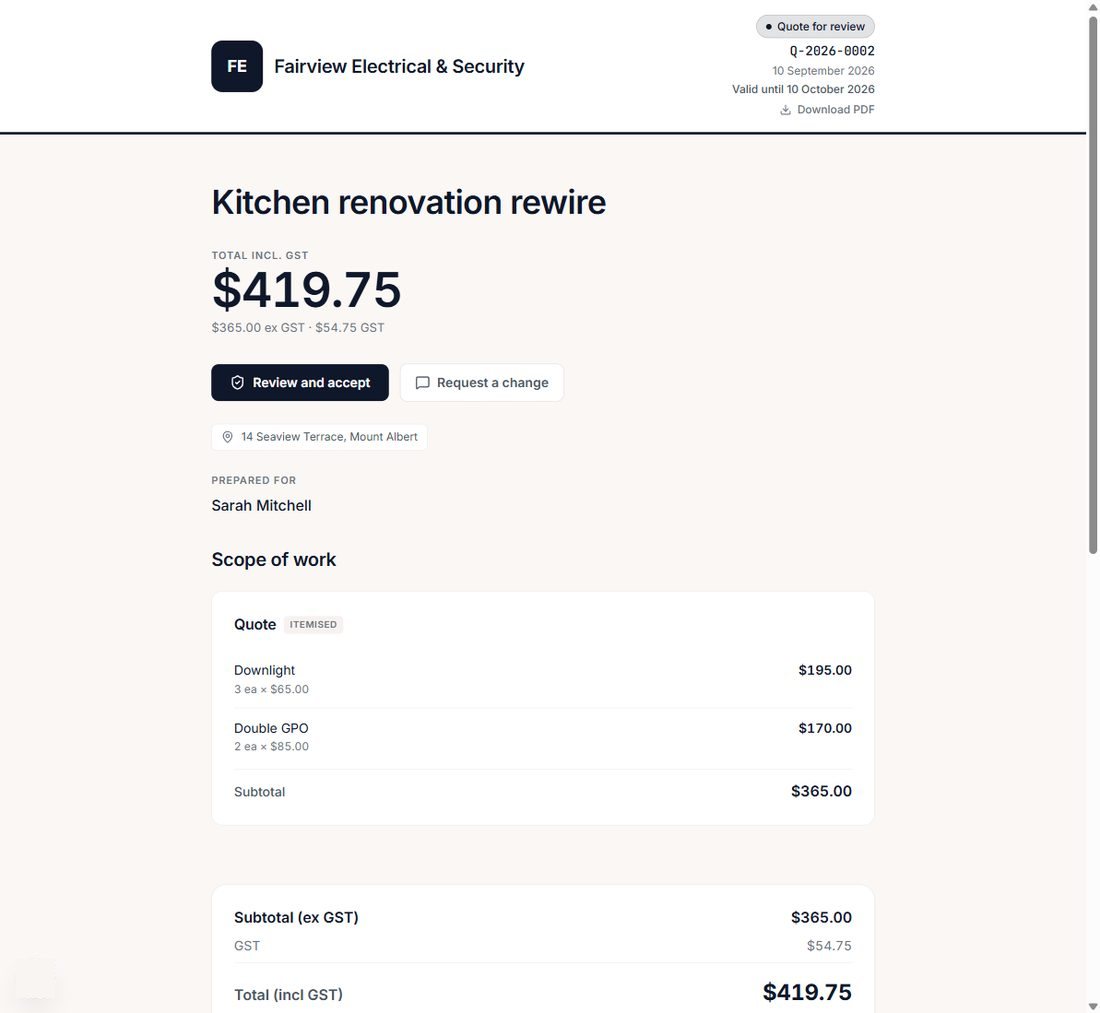
The customer's page — no login, no app to download. 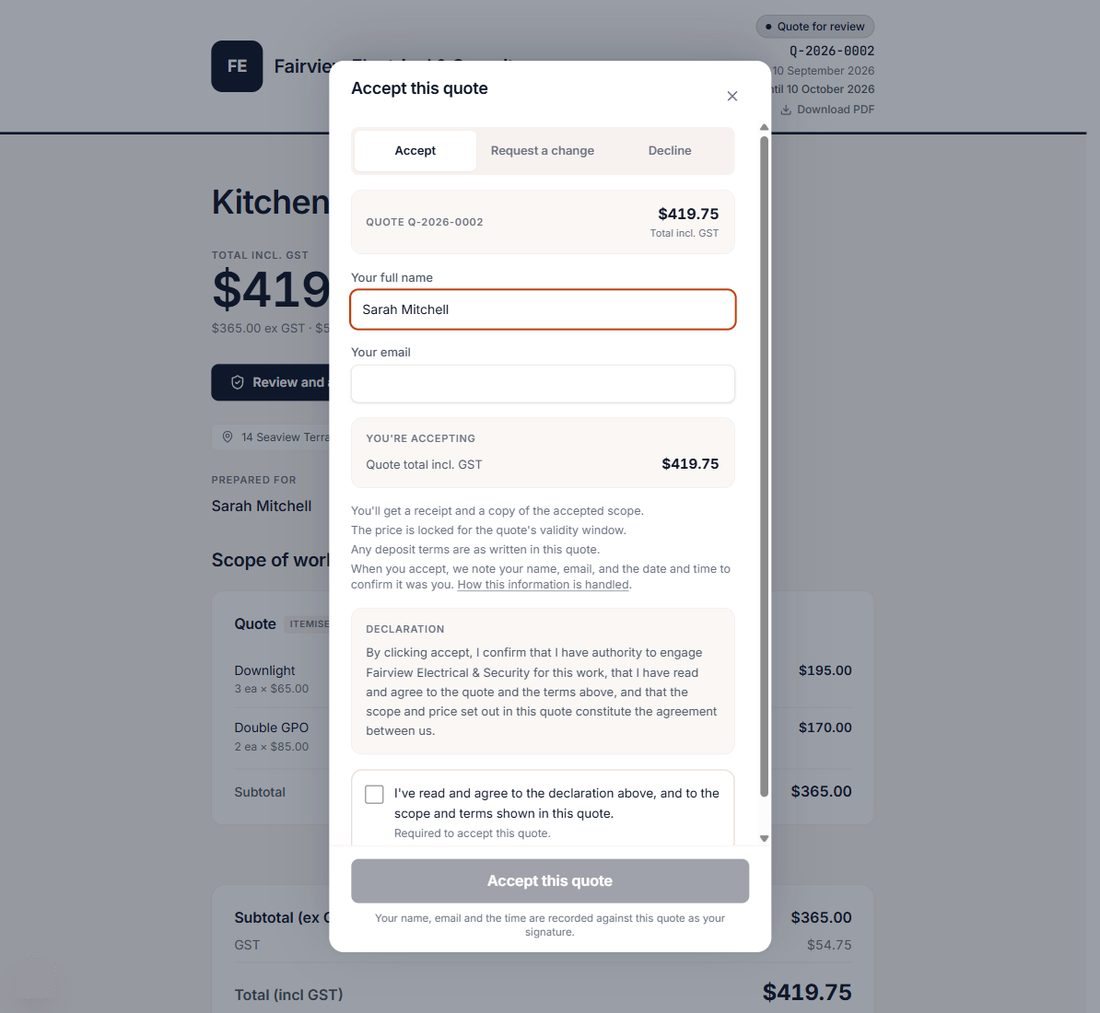
One declaration, one checkbox — that's the acceptance. -
After they accept
The price locks and they get a receipt on the spot: what they agreed to, the total, a reference, and who accepted it and when — their record as much as yours. Back in Knack, the job shows as accepted and gets its job number.
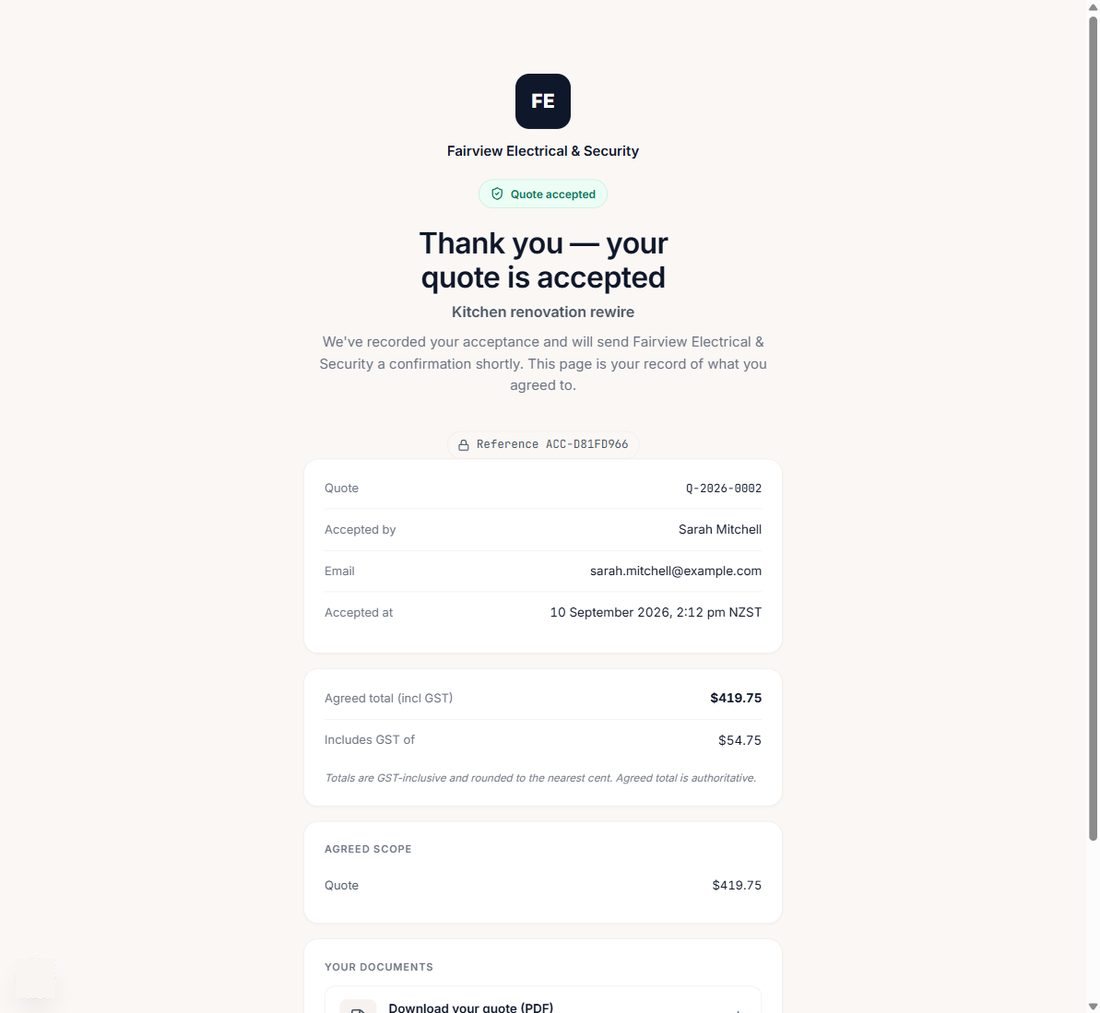
The customer's receipt — their copy of exactly what they agreed to.
That's the whole loop
Capture, mark up, price, send, accept. Everything after this — booking the crew and running the job through to done — picks up from the same job page.
Try it on a job you're pricing this week.
Thirty days, every plan feature, no credit card.