
Guides · Jobs & scheduling
Running a job after it's accepted
The accepted quote isn't the end of the job — it's the start of the work. Here's how Knack carries a job from "book it in" through to a customer who knows exactly where things stand.
7 steps · about a 5-minute read
Booking visits and running jobs are part of the Pro and Crew plans — and of the 30-day trial, which has every plan feature.
-
An accepted job gets a number
The moment a customer accepts, the job gets a job number — J-1001, then J-1002, and so on (or carry on your own numbering: Settings, Next job number) — and its status changes to Accepted. The job page now leads with a clear prompt: the work is sold, but nothing's booked yet.
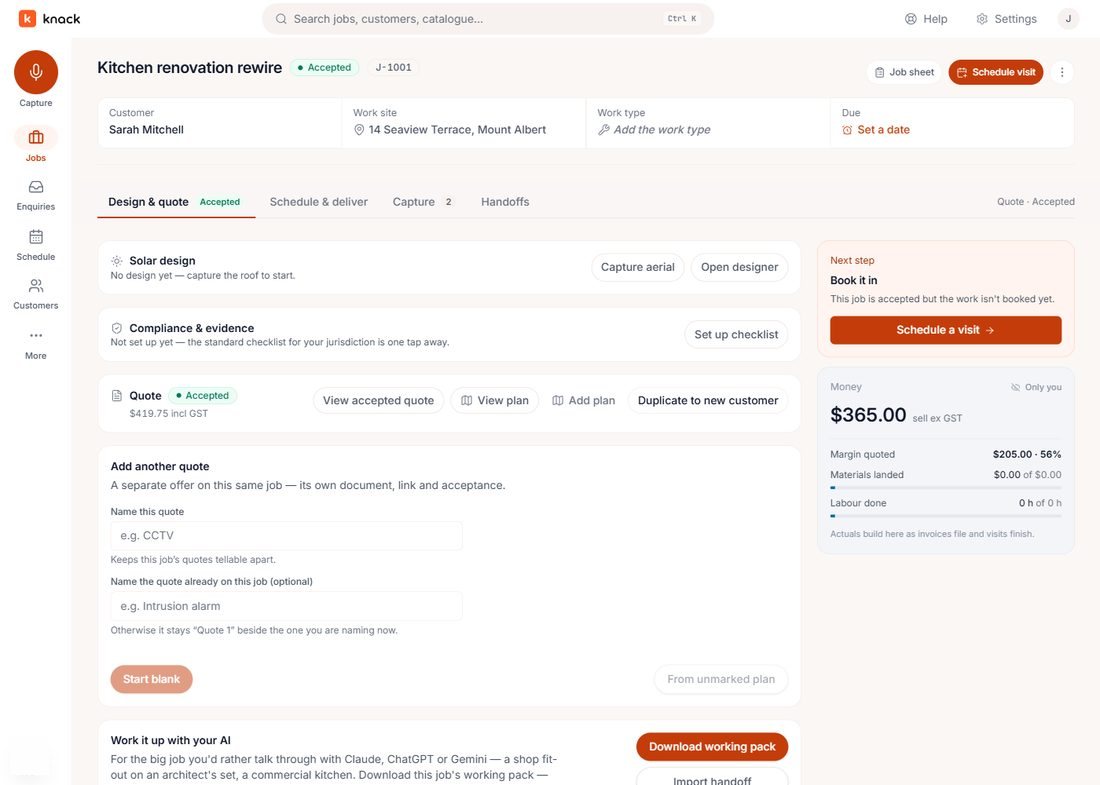
Book it in — the job knows it's sold and not yet booked, and says so. -
Book a visit
Schedule visit asks for what a booking needs: a date, a start time, how many hours, what kind of visit it is, and who's doing it. Name the visit — "Rewire kitchen circuits" — and that's what shows on the calendar, not just the job's name.
- KindWork, quote / site measure, callback or meeting
- RepeatsA one-off, or a repeating pattern
- AssignPick who's on the tools
- Email the customerOptional — tick it and the day-before reminder follows on its own
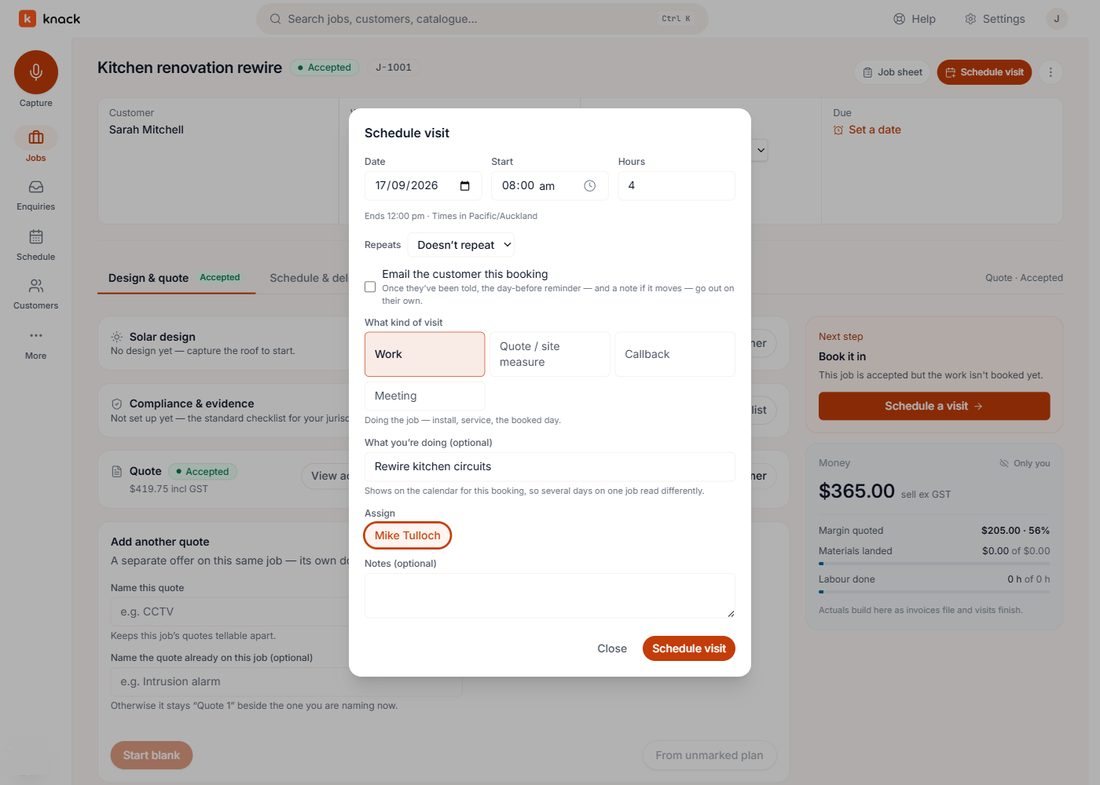
One visit, one crew member, one line the calendar can read. -
It lands on the Schedule
Every booking — on this job or any other — shows on the account-wide Schedule, coloured by kind. Drag a visit to move it, resize it to change its hours, or drag it onto someone else to reassign it.
Click any visit to open it without leaving the board — reassign it, start work, finish it, or jump to the job or its job sheet.
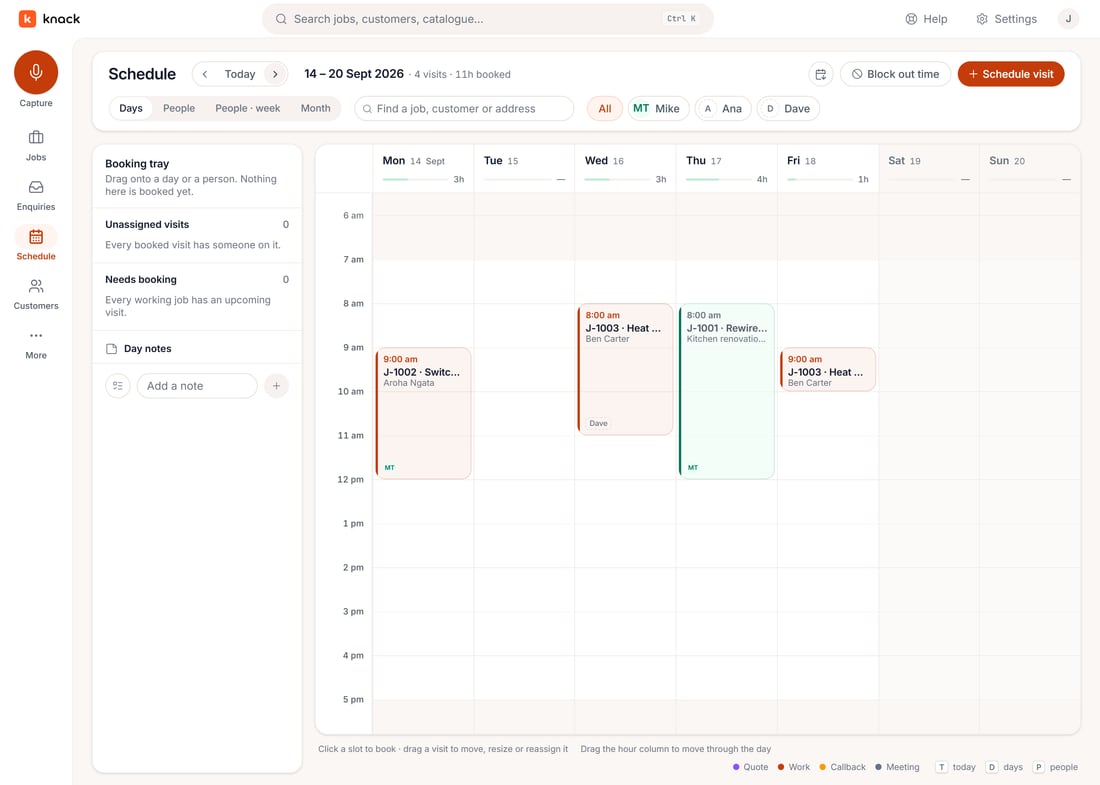
The whole crew's week on one board. 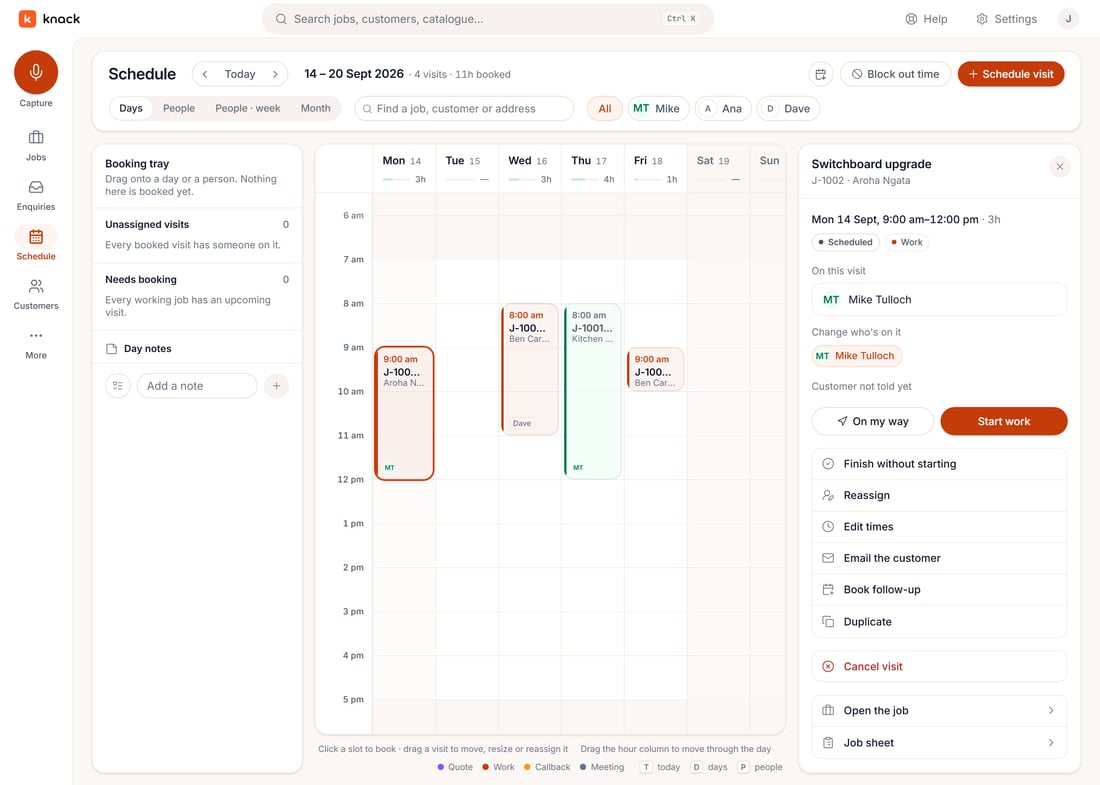
Everything you'd do to a visit, without opening the job. -
What the crew sees — no login needed
Whoever's assigned gets a job sheet: the address with a one-tap call and navigate, any instructions you've left, the next visit, what's going in from the quote, and the plan. It's built to open on a phone in the van, and a subbie doesn't need a Knack account to read it.
Instructions for the crew live on the job's Schedule & deliver tab and print at the top of every visit's job sheet — the things you'd otherwise text and lose: "isolate at the main board first", "dog on site", "gate code is 4471".
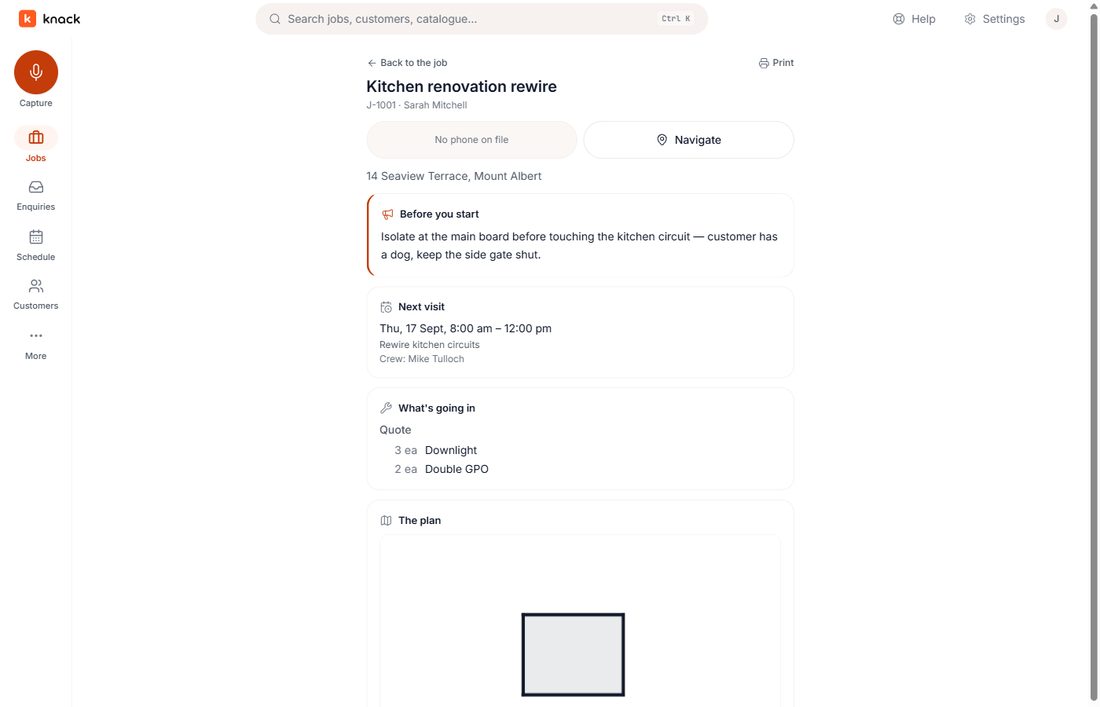
The job sheet the crew opens on site. -
Finish the visit
Finishing a visit asks the one question worth answering: how did it go? A quick note, a photo from site, and a flag if it needs another visit before the job's done. Tick Tell the customer and the note and photos go to their job page.
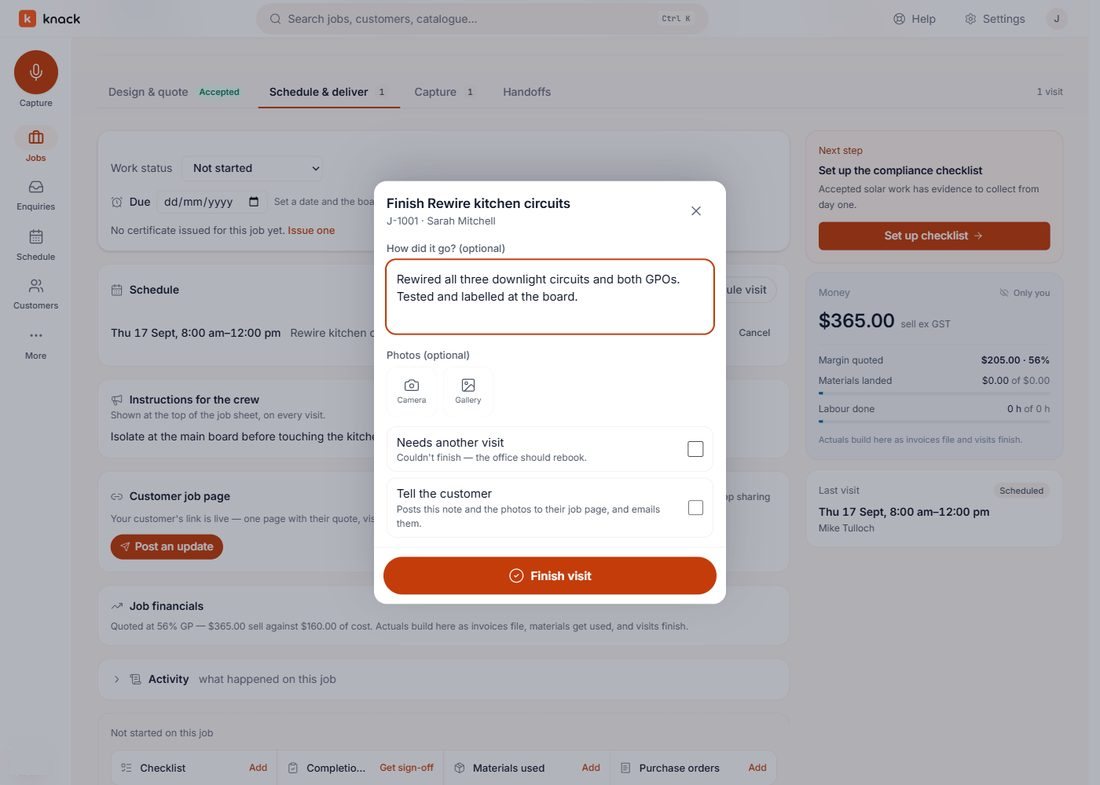
Written down while it's fresh, not remembered at invoice time. -
Get it signed off
Two ways to close a job out: Send for sign-off asks the customer to confirm it themselves, or They agreed on site records that they told you in person — with their name and the date, labelled honestly as what it is.
Knack says it straight: an on-site sign-off is "noted by you, not signed by the customer". It's a record that the job was handed over — not a stand-in for the customer's own word.
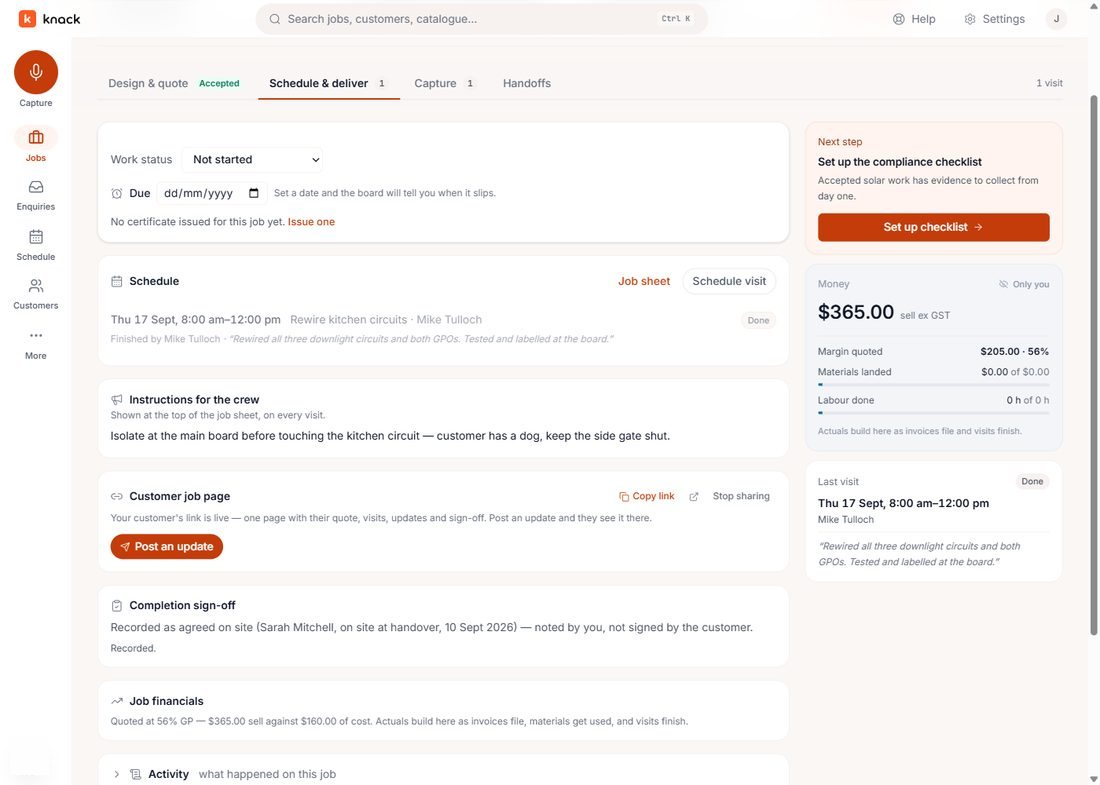
Recorded, and honest about which kind of record it is. -
One link for the whole job
On the same tab, Copy link gives you a page for the customer that outlives any one email: progress from quote to done, the next visit, every update you've posted, and their accepted quote. It says plainly what it isn't — it's not an invoice, and it asks for no payment.
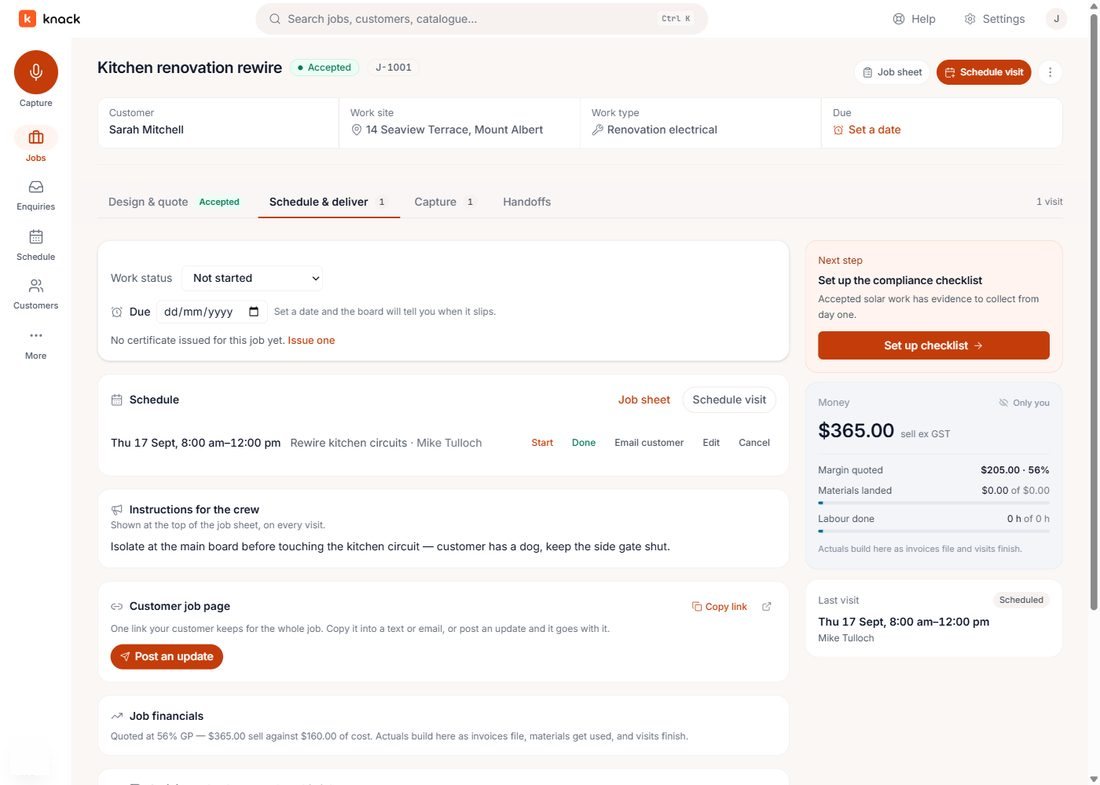
Copy it into a text once — it stays live for the whole job. 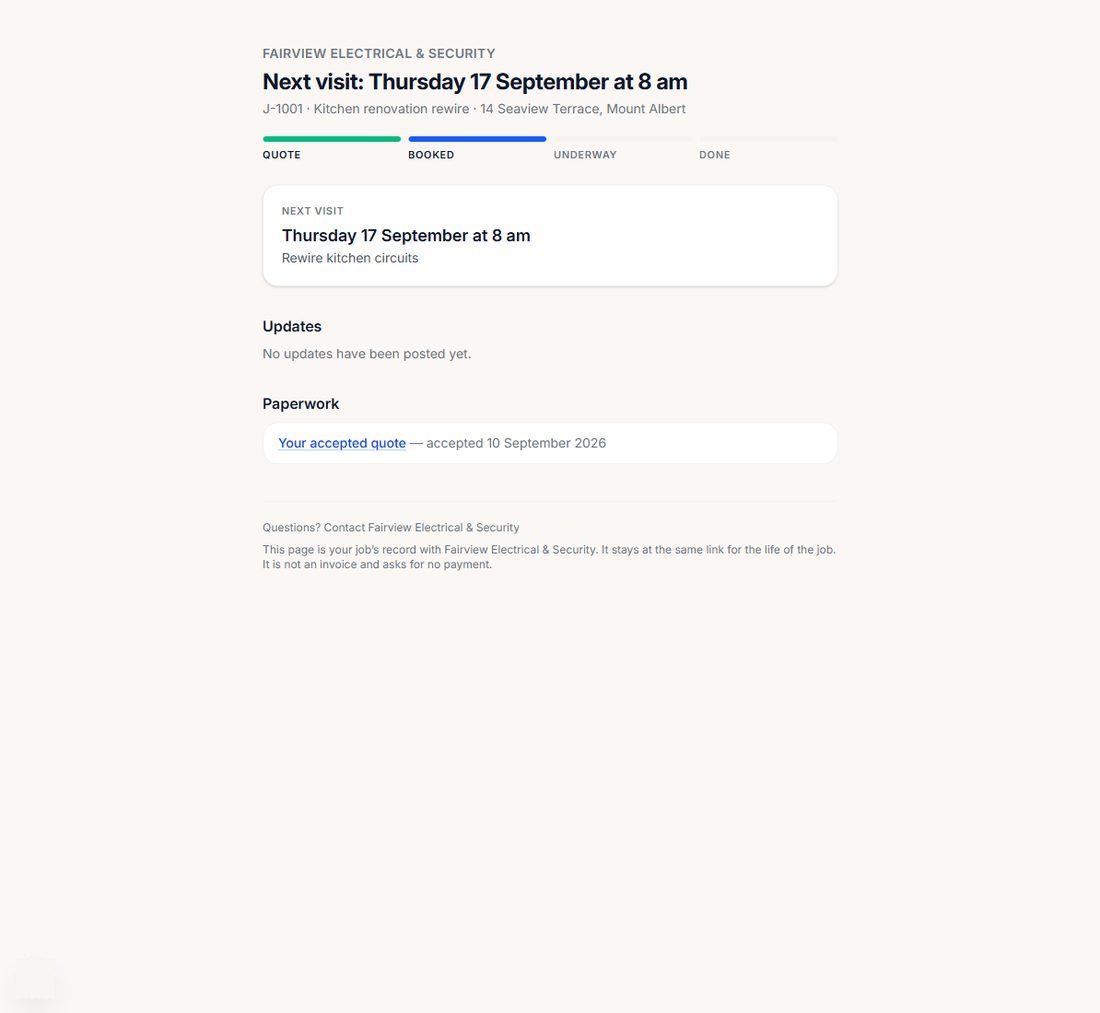
The customer's job page — where things are at, from one link.
That's the job, end to end
Accepted, booked, worked, signed off — and your customer can see where it's at the whole way through, from one link they never have to ask you for again.
Try it on a job you're pricing this week.
Thirty days, every plan feature, no credit card.